Turn a small design or photo into a sharp 4500 px file for posters, mugs and printables. Crop to exact print sizes and set the DPI before you upload to Etsy or your print-on-demand shop.
Bring back detail in old prints, lift dark night photos and clear away haze — then enlarge the result for print. Everything runs on your own device, so client photos stay private.
Remove the background, compress images for a faster store and convert them to WebP. Process a whole folder at once, with no watermarks and no per-image fees.
1Choose, drop or paste your images — they stay on your device.
2Adjust the settings and check the preview.
3Download instantly — no sign-up, no watermark.
How to colorize a black-and-white photo
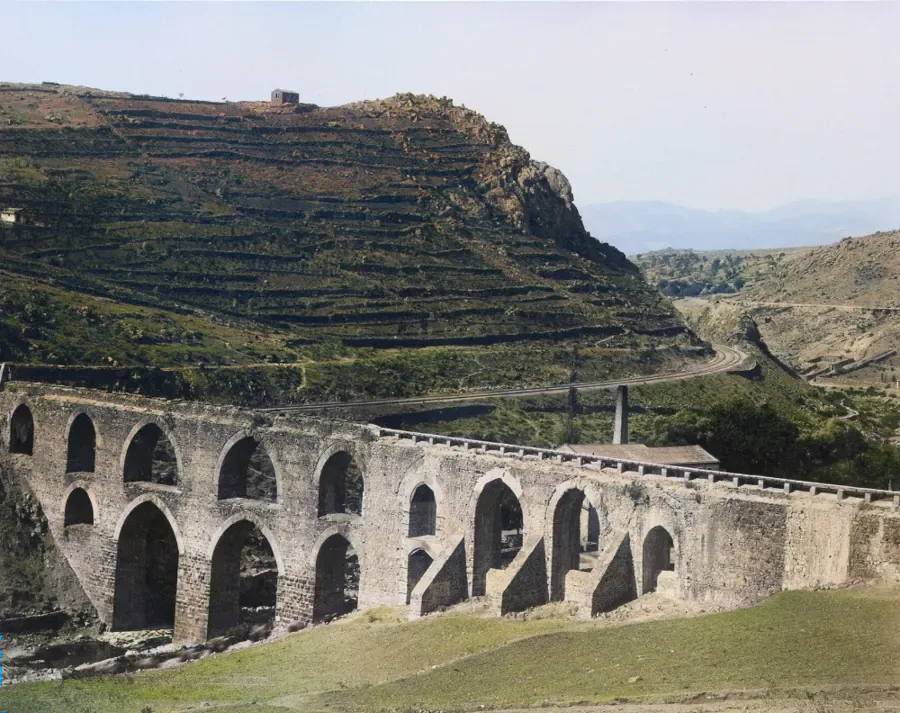
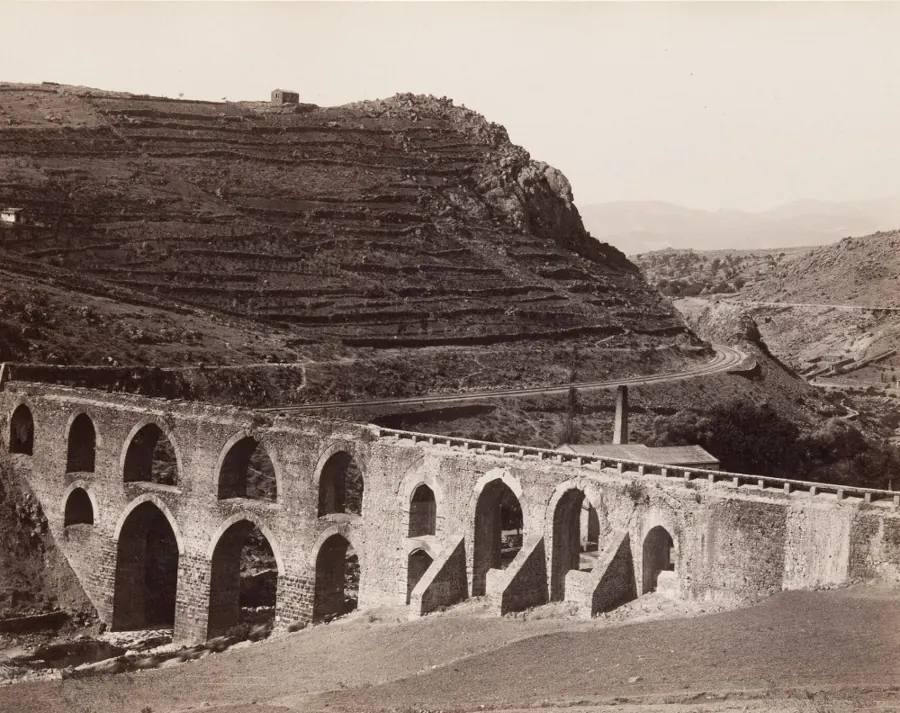
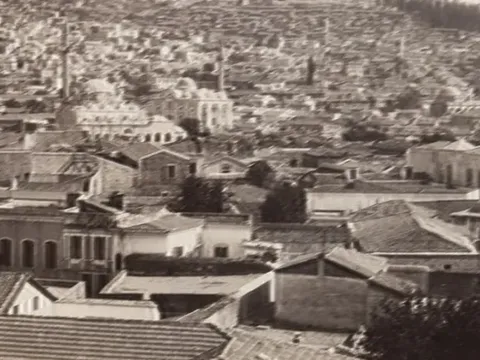
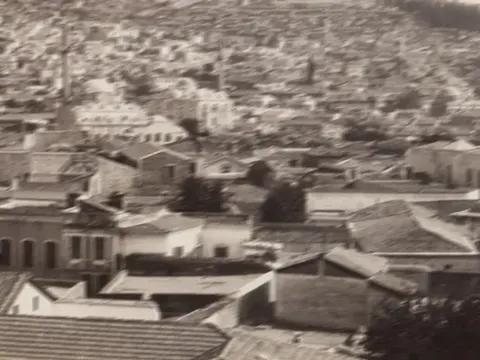
Old family photos, portraits from grandparents’ albums and historic pictures come alive in colour. This free AI photo colorizer (DDColor) looks at the whole scene — sky, skin, trees, clothes, buildings — and adds natural, believable colours, while every detail of your original photo stays exactly as it was. It runs entirely in your browser, so private family photos are never uploaded. Small or old scans can be enlarged 2× or 4× with the AI upscaler in the same step.
1Drop your black-and-white photo; the Colorize filter is already selected.
2Set the colour strength and, for small scans, an AI upscale size such as 2× or 4×.
3Press Enhance, compare before and after, and download the colorized photo.
Great for
Old family photos and portraits from albums.
Historic pictures for a presentation, a book or a gift.
Black-and-white scans you want to print and frame in colour.
Faded sepia prints that look better in natural colours.
Frequently asked questions
Are the colours historically accurate?
The AI picks plausible colours from what it learned on millions of photos. Skin, sky and plants usually look right; the exact colour of a dress or a car is a guess.
Is my photo uploaded?
No. The colorizing model (about 68 MB, downloaded once and then cached) runs on your own device.
Can I colorize and enlarge at the same time?
Yes. Pick 2× or 4× before pressing Enhance: the photo is colorized first and then upscaled with AI for printing.
Does it work on colour photos?
It is made for black-and-white and sepia photos. On a colour photo it replaces the existing colours with its own guess.
2026 8K Image & AI Video Upscaling Guide
Choose the right resolution
Use 2K for websites and social posts, 4K for screens and presentations, and 8K for large prints or heavy cropping. For Etsy printables and print-on-demand, 300 DPI Print mode gives a 4500 px long edge — enough for a 15-inch (38 cm) print.
Pick the right filter
Smart Edge Sharpen suits photos and product shots. Smooth & Denoise keeps flat colors and line art clean. Clarity & Vibrance Boost adds depth to landscapes, food and travel images.
Upscale short videos
1080p renders quickly on any device and is ideal for Reels, Shorts and TikTok. Choose 4K for maximum detail on YouTube or large screens. Rendering runs in real time, so keep the tab open until it finishes.
Frequently asked questions
Is Upsizo really free?
Yes. There are no fees, no sign-up, no watermarks and no daily limits.
Are my files uploaded to a server?
No. Every image and video is processed locally in your browser with WebGPU, WebGL and WebAssembly, so your files never leave your device.
Can upscaling add real detail?
Yes, within limits. The AI engines (Real-ESRGAN) rebuild sharp edges and realistic textures instead of just smoothing pixels. They cannot recover information that was never captured, such as unreadable text or tiny faces, so start with the best source you have.
Why does 8K take longer than 4K?
An 8K image has four times as many pixels as 4K, so it needs more memory and time. On phones with limited memory, 4K or Print mode is more reliable.
Which video formats are supported?
Any MP4, WebM or MOV clip your browser can play. The result is saved as MP4 or WebM depending on your browser, with the original audio when present.
How big can the image be?
The output can be up to 16384 px on its longest side — 8K is 7680 px, and the 300 DPI print presets cover common poster sizes. Very large outputs need more memory, so phones and older computers may need a smaller size.
Can I upscale many images at once?
Yes. Drop or select up to 50 images; they are processed one after another with the same settings and you can download them together as a ZIP.
Can I use the results commercially?
Yes. The images you create are yours to use in shops, prints and client work. Upsizo claims no rights over your files and adds no watermark.
Does it work on my phone?
Yes, in any modern mobile browser. Phones have less memory, so 8K images and long videos can be slow or limited; 2K and 4K work well on most devices.
Which file formats are supported?
You can open JPG, PNG, WebP, AVIF, GIF and BMP images (HEIC where your browser supports it) and save them as PNG, JPG, WebP, PDF or TIFF. Videos: MP4, WebM or MOV up to 60 seconds.
Is AI upscaling better than simply enlarging?
Simple enlarging only stretches the pixels, so the picture gets softer. The AI model was trained on many photos and redraws edges, textures and fine lines at the new size. It can't recover details that were never captured, but the result is much sharper and cleaner.
How can I improve photo quality and increase resolution online?
Drop your photo on Upsizo and pick 2×, 4× or the print size. The AI rebuilds sharp edges and fine detail while it enlarges, so you get a higher-resolution photo without losing quality — free, online and without uploading the file. For blurry, dark or hazy photos, use the Photo Enhancer.
Advertisement
We use cookies to show ads that keep this site free. You can accept or reject non-essential cookies.


 MB → KB
 PNG · JPG · WebP
 A4 · 300 DPI